

Author: Comberg
Postmodern, D-find
Your 1-sentence definitions: PoMo
Render Video
Final animations should be about 30+ seconds, with sound and titles. Final mp4 files should be posted to the Course Folder (Project 2 final movies) for final crit on March 19 or a date TBD.
To Render and Export as Video:
Save File as .psd and back up file to a second safe location
Re-start computer to prevent crash
Open file
Select Render Video from Timeline menu options
Give file a name and select folder to save .mp4 file
Choose format HU 264
Click Render
Somewhere in your animation include this text
Your name
Foundations of Art Design and Digital Culture
Penn Fine Arts
2020
Linder Sterling: Feminist Montage
Linder Sterling is a British artist known for her photography, radical feminist photomontage, and confrontational performance art.


Inspired by Richard Hamilton?
‘Just what is it that makes today’s homes so different, so appealing?’

Dinosaur Gifs


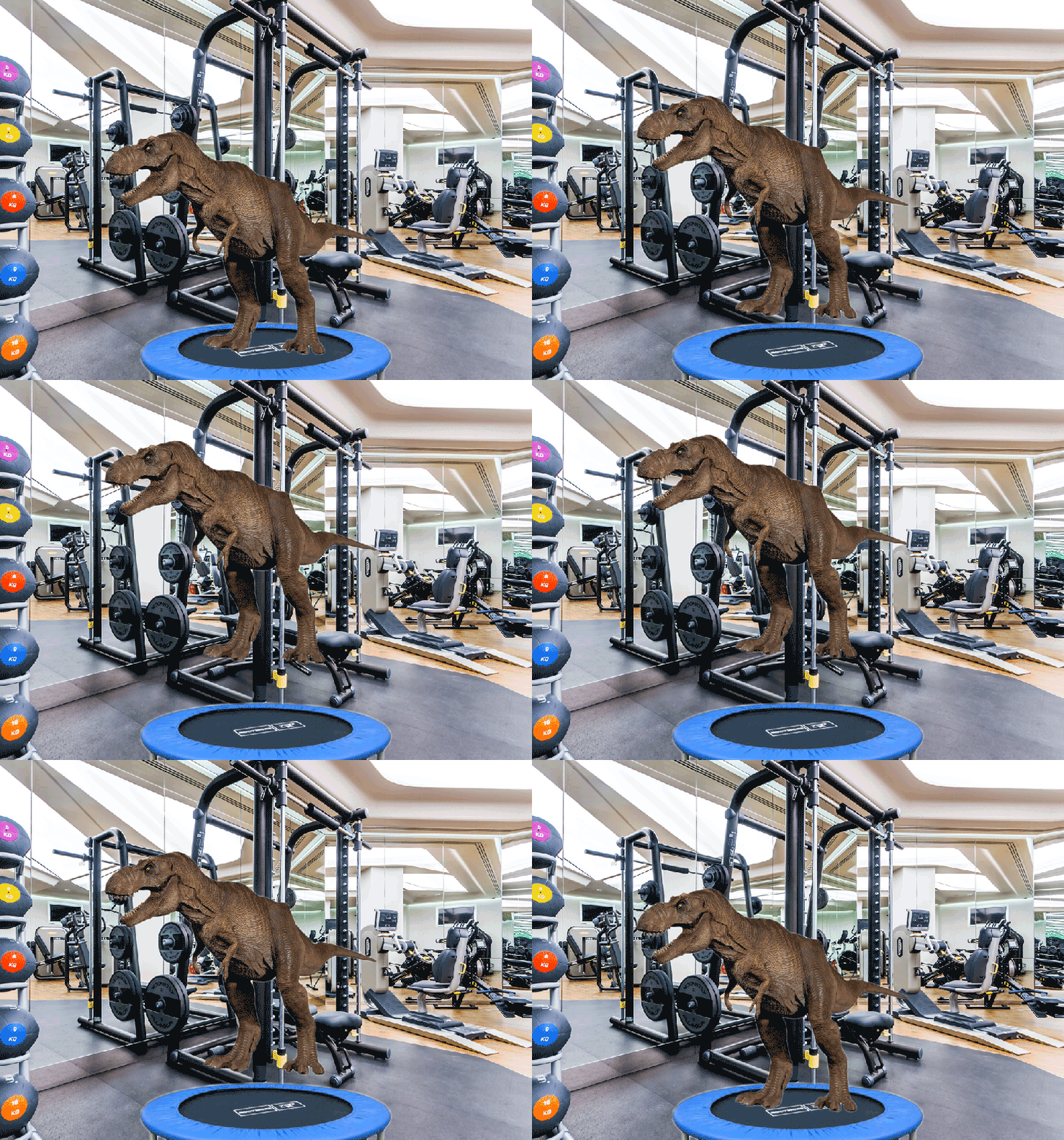

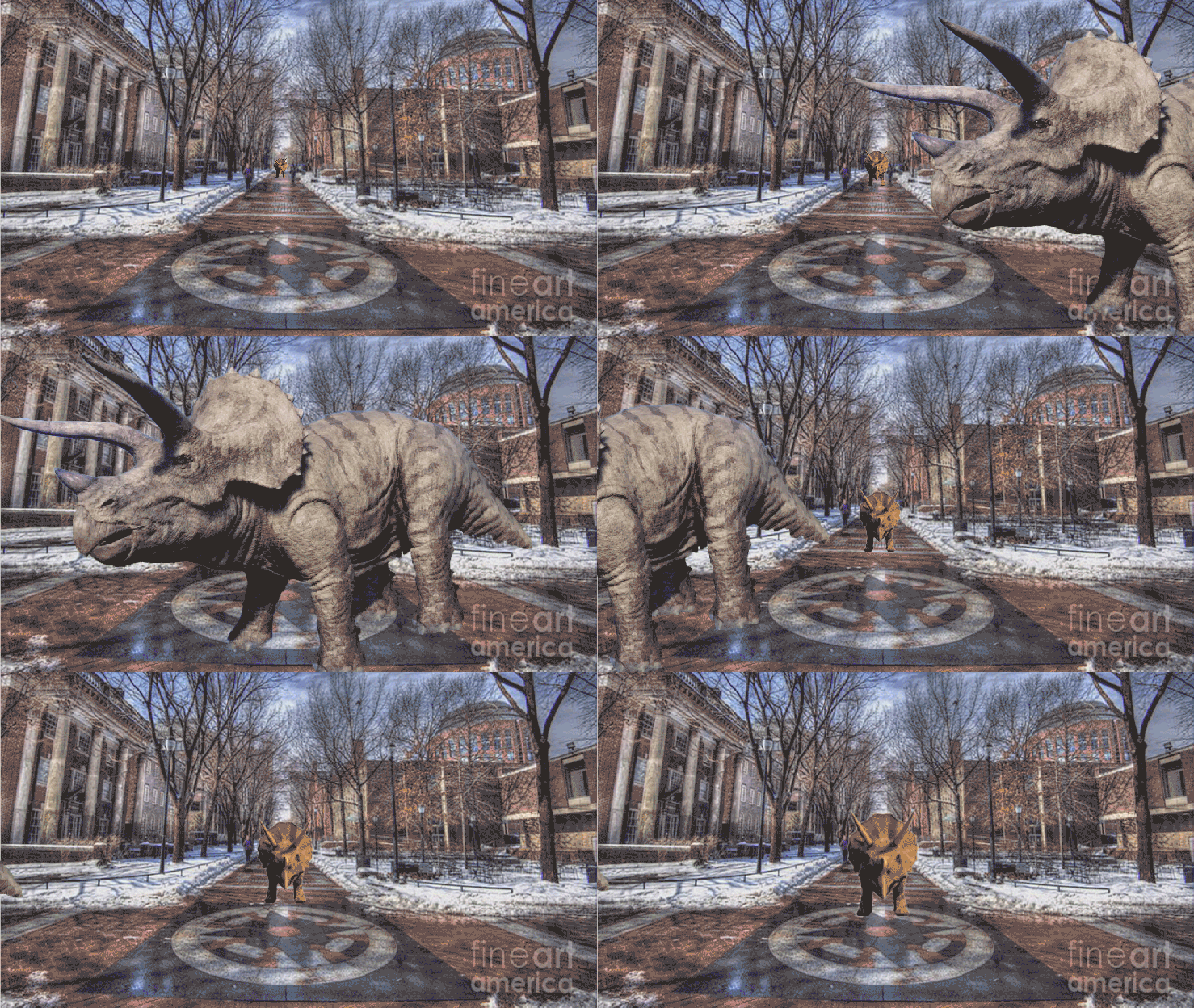


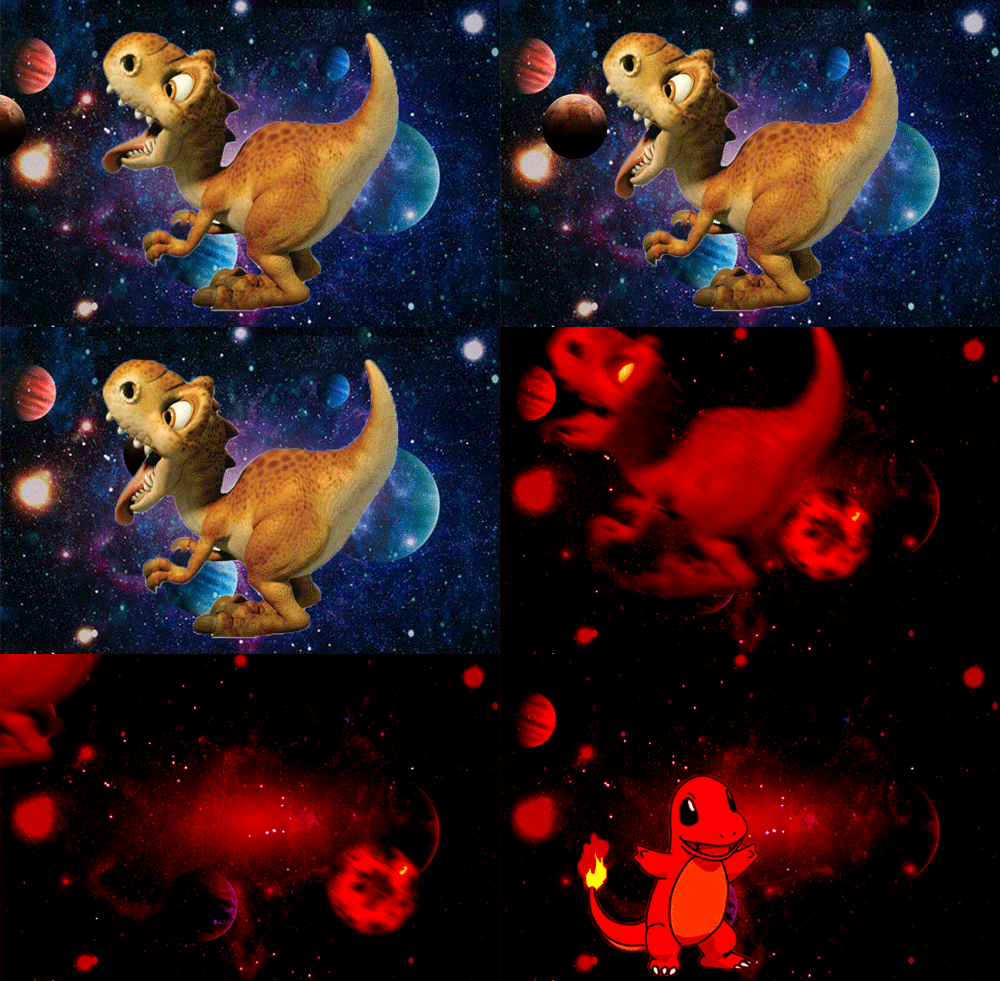




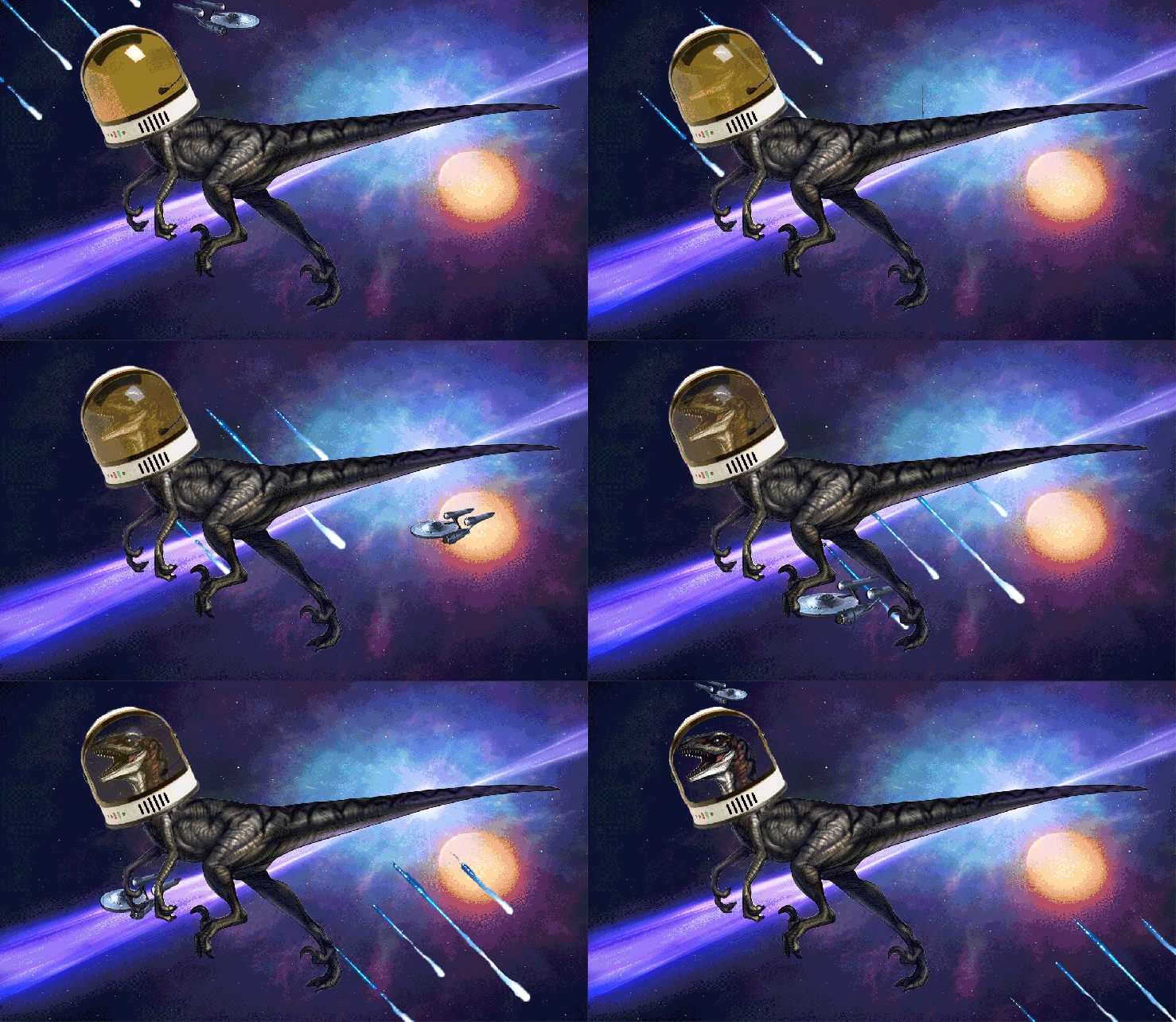

Import a GIF into Your Timeline

To import an existing GIF into your Timeline:
– Find and download a GIF from Internet with a transparent background (or make your own)
– Open/drag your GIF into Photoshop
– Open timeline window (you will probably start with frame animation). Make all additions to timing between frames now.
– Convert the frame timeline to a video timeline. You should see multiple layers within the timeline window to match the layer window
– Select all your layers
– Right-click and click “Convert to Smart Object.” If done correctly, your layers should all have become one object.
– You are now free to manipulate the GIF in your Timeline and Transform, etc. You can drag, resize, mask, and use other effects.
You can also create a GIF animation from a series of photos or from a video clip.
Video Artist Erik Winkowski


Arshile Gorky & Agnes Martin


Invisible Cities Symposium

Fuse

Neville Brody and Jon Wozencroft created FUSE, the experimental and influential typography publication, in 1991.
 2020 Foundations